
Logic Tags
Logic tags are the control-flow tokens of your template syntax — conditionals and loops like {% if vip %} … {% endif %} or {% for item in items %} … {% endfor %}. They are a separate concern from merge tags: merge tags are data placeholders you pick from a list, logic tags are structure your sending platform evaluates at send time.
There are two independent parts:
- Highlighting — any logic tag you type or paste into a title or paragraph is detected from the syntax preset's
logicpattern and rendered as an uppercase keyword badge (IF, ENDIF, FOR…). This is always on and needs no configuration. See Merge Tags → Logic tags for how detection and the syntax presets work. - Insertion — configure a
logicTagsoption to give authors a dedicated Logic button, so they can drop in control flow without writing the syntax by hand. That's what this page covers.
Configuration
Pass a logicTags option with tags (standalone tokens) and/or pairs (open/close constructs). Both are optional.
import { init } from '@templatical/editor';

const editor = await init({
  container: '#editor',
  logicTags: {
    tags: [
      { label: 'Else', value: '{% else %}', group: 'Conditions' },
    ],
    pairs: [
      {
        label: 'If VIP',
        before: '{% if customer.vip %}',
        after: '{% endif %}',
        group: 'Conditions',
        description: 'Show the wrapped content only to VIP customers',
      },
      {
        label: 'Loop items',
        before: '{% for item in order.items %}',
        after: '{% endfor %}',
        group: 'Loops',
      },
    ],
  },
});
Logic tags use the same mergeTags.syntax preset (the preset defines both the data and logic patterns), so you don't configure syntax twice.
Types
interface LogicTag {
  label: string;
  value: string;        // a standalone logic token, e.g. '{% else %}'
  group?: string;       // optional section label in the picker
  description?: string; // optional helper text in the picker
}

interface LogicPair {
  label: string;
  before: string;       // opening tag, e.g. '{% if vip %}'
  after: string;        // closing tag, e.g. '{% endif %}'
  group?: string;       // optional section label in the picker
  description?: string;
}

interface LogicTagsConfig {
  tags?: LogicTag[];
  pairs?: LogicPair[];
  onRequest?: () => Promise<LogicTag | LogicPair | null>;
}
value / before / after must include the syntax delimiters. group and description are picker-only — they never appear on the canvas or in the rendered MJML.
The picker
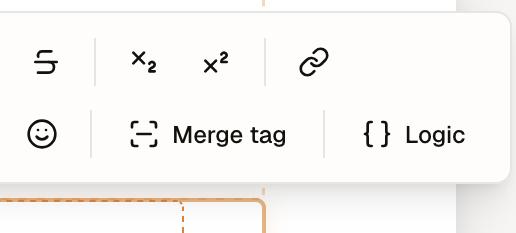
When logicTags is configured, a Logic button appears in the title and paragraph toolbars (next to Merge tag). Clicking it opens a picker:
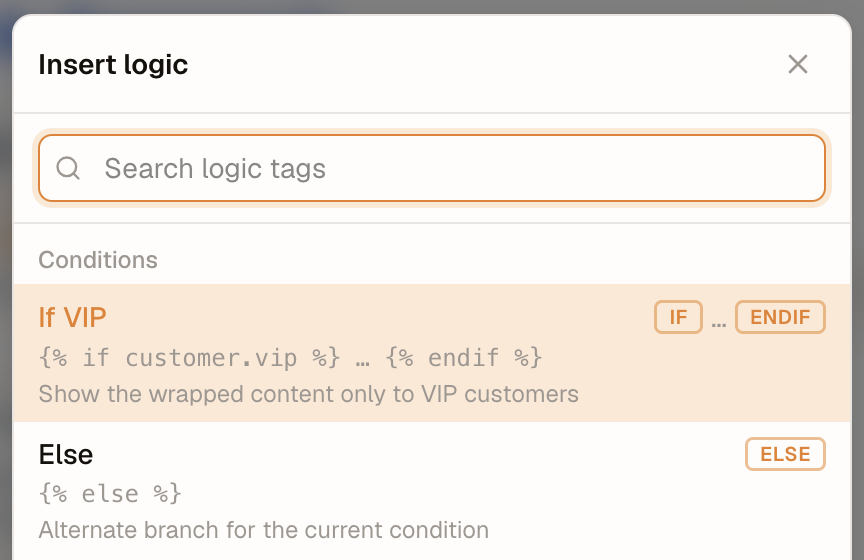
tagsandpairsshare one list, grouped bygroup— a section lists its open/close pairs first, then its standalone tags, so a group used by both (e.g. "Conditions") appears once.- A standalone tag shows a single keyword badge (e.g. ELSE); a pair shows both (e.g. IF … ENDIF), signalling that it wraps your selection.
Type to filter; use ↑/↓ then Enter to insert; Esc or the backdrop dismisses.
Insertion behavior
- A standalone tag is inserted at the cursor.
- A pair wraps the current selection —
[open]{selection}[close]— so authors can select a paragraph and make it conditional in one step. - A pair with no selection drops both pills adjacent, with the caret placed between them so you can type the wrapped content.
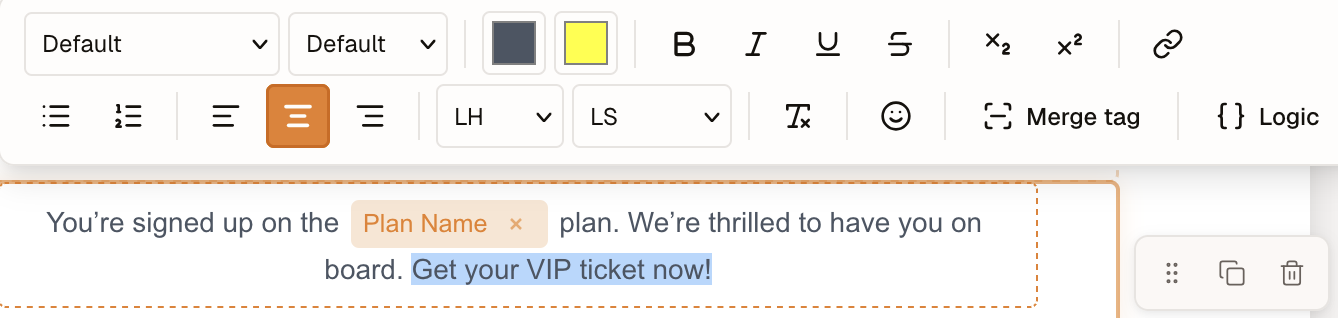
For example, select the text you want to make conditional:
Choose a pair (here, If VIP) and it wraps the selection — the text now sits between the opening and closing pills:
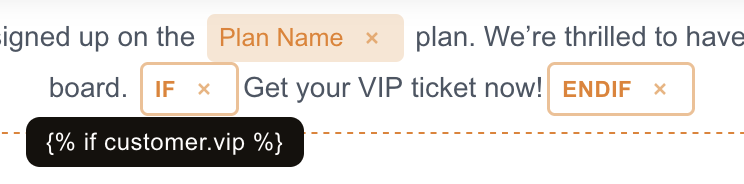
Both sides render as the same styled logic badges as typed logic, and pass through unchanged in the rendered MJML. The editor does not enforce balancing, so offer the matching opener/closer as a single pair (recommended) rather than two separate tags.
Your own picker
Set logicTags.onRequest to replace the built-in picker with your own UI — a custom modal, a conditional builder, or logic constructs fetched from an API (and it's how consumers with a non-preset syntax wire their own experience). It's called when the user clicks Logic; return the chosen LogicTag / LogicPair, or null to cancel. Precedence mirrors merge tags: onRequest → built-in picker → nothing.
const editor = await init({
  container: '#editor',
  logicTags: {
    onRequest: async () => {
      const choice = await showMyLogicPicker();
      return choice; // LogicTag | LogicPair | null
    },
  },
});
Beyond rich text: plain fields
Logic isn't limited to title/paragraph blocks. Inputs and textareas that already support merge tags — button text, button/image URLs, alt text — also get the Logic button and highlight logic tags in their value.
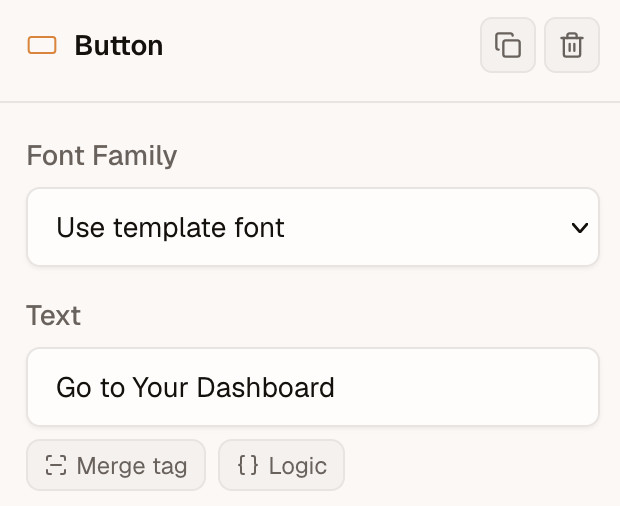
For example, make button text conditional:
{% if guest.status == 'vip' %}VIP access{% else %}Sign up{% endif %}
In a plain field a tag inserts at the cursor and a pair wraps the selected text (string-wise), the same as in rich text.